
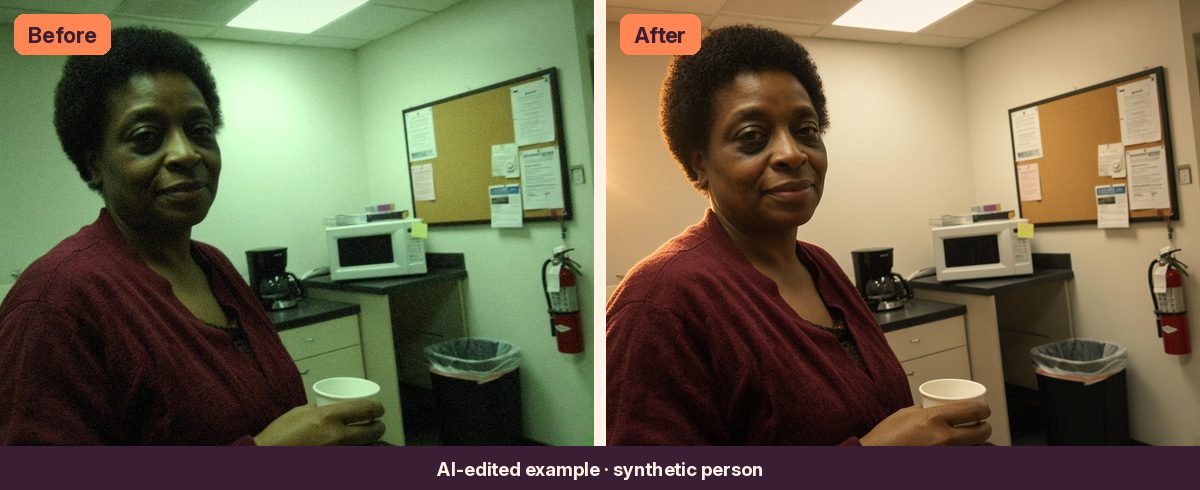
Why indoor holiday photos come out orange (or green)
Every light source has a color. Warm lamps and candles lean orange, some overhead tubes and LEDs lean green, and daylight from a window leans blue. Your phone tries to guess one "white" for the whole scene. In a living room full of lamps, string lights and a window, that guess often misses, so skin turns orange, yellow or slightly green.
Fix 1: Use your phone's editor (free, no AI)
For a mild color cast, this is often all you need.
- Open the photo and tap Edit, then find the adjust tools.
- Too orange or yellow? Move Warmth (sometimes called Temperature) toward blue, a little at a time.
- Too green? Move Tint toward magenta or pink.
- Judge by something that should be white or gray, like a wall, a shirt or a plate, and by skin. Stop when skin looks natural, not when the room looks cold.
iPhone Photos and Google Photos both have Warmth and Tint controls. Names vary slightly on other phones.
Fix 2: Next time, shoot with one kind of light
- Turn off the overhead light if lamps are doing most of the work, or the other way round. Mixed light is what confuses the phone.
- Face people toward a window during the day.
- Tap on a face before you shoot so the phone sets exposure for people, not the bright tree.
Fix 3: Ask ChatGPT to correct the color (free starter prompt)
When the cast is strong, or the photo also has heavy shadows, an AI image tool can do more than a slider. Upload the photo and paste this:
Free starter prompt
Edit the uploaded photo. Keep every person's face, expression, pose and clothing, the room, and the camera angle exactly as they are. Only change the color: remove the [orange / yellow / green] cast from the indoor lighting so skin, white walls and fabric look natural. Keep the warm glow of lamps, candles and string lights where they are. Do not add or remove anything. Output a believable photograph at the same aspect ratio as the original.
This is a short, general prompt, not one of our tested prompts, so expect to retry more often.
If the result misses:
- Faces changed? Run it again on the original photo and add: "The faces must stay exactly as they are."
- Now it looks cold or blue? Add: "Slightly warm overall, not blue."
- Room got rearranged? Add: "Do not move, add or remove any objects."
- Always retry from your original photo, not from an earlier AI result.
When neutral isn't the look you want
Correcting the color gives you an accurate photo. Sometimes you want a flattering one: warm light from one side, glowing skin and a soft rim on the hair, like late-afternoon sun. That's a relight, not a color fix, and it takes more specific instructions. It's what our Warm Glow Rescue prompt does, as in the example at the top of this page.
Warm Glow Rescue adds warm, directional light on purpose. If you want a neutral, daylight look instead, the free prompt above is the better fit.
Bonus: glare from string lights and street lamps
Night photos by the tree or out looking at lights often get starbursts, ghost dots and haze from the lens. That's a separate problem from color, and our Night Glare Cleanup prompt handles it.
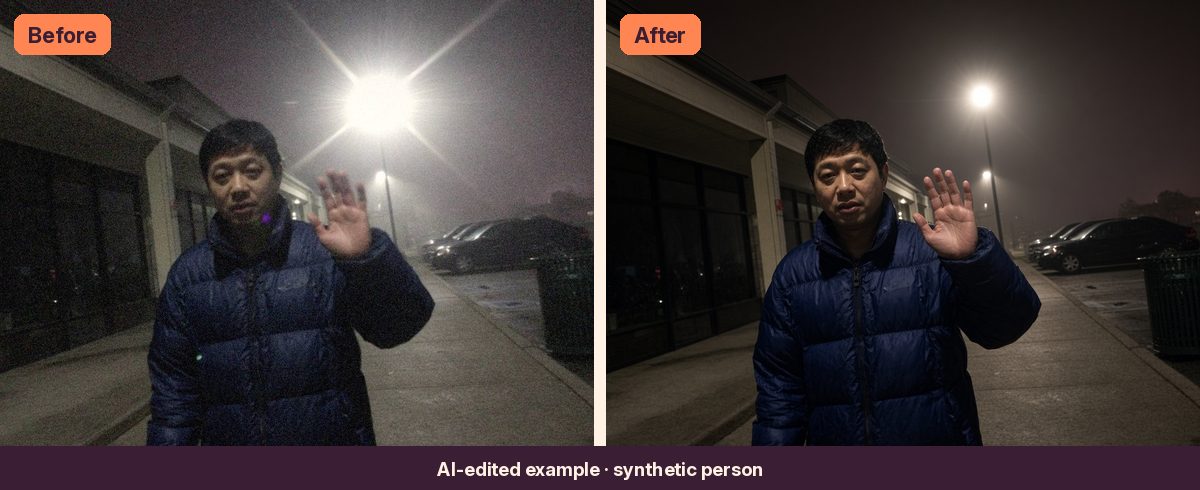
Warm Glow Rescue and Night Glare Cleanup both come in the Light Fix Kit, with three more photo-fix prompts.
Quick answers
Can ChatGPT fix photo colors without changing faces?
Often, yes, if you say clearly that faces must stay the same and you only ask for a color change. AI tools redraw the image, so small changes can still happen. Zoom in, compare with the original, and retry from the original if anything looks off.
Why does my photo look green?
Some overhead tubes and LED bulbs give off light with a green tint that your phone doesn't fully correct. Move the Tint slider toward magenta, or use the free prompt above with "green".
Is the slider or the AI better?
For a mild cast, the slider is faster and changes nothing else. For a strong cast, mixed light or heavy shadows, an AI tool can do more, but check faces carefully.