
What you need
- An AI image tool that can edit a photo you upload, such as ChatGPT. Image features and limits depend on the tool and your plan.
- Your own photo, with an OK from every adult in it. Photos of children should be your own.
- A few minutes, and room for a retry.
Step 1: Choose a photo with big, sharp faces
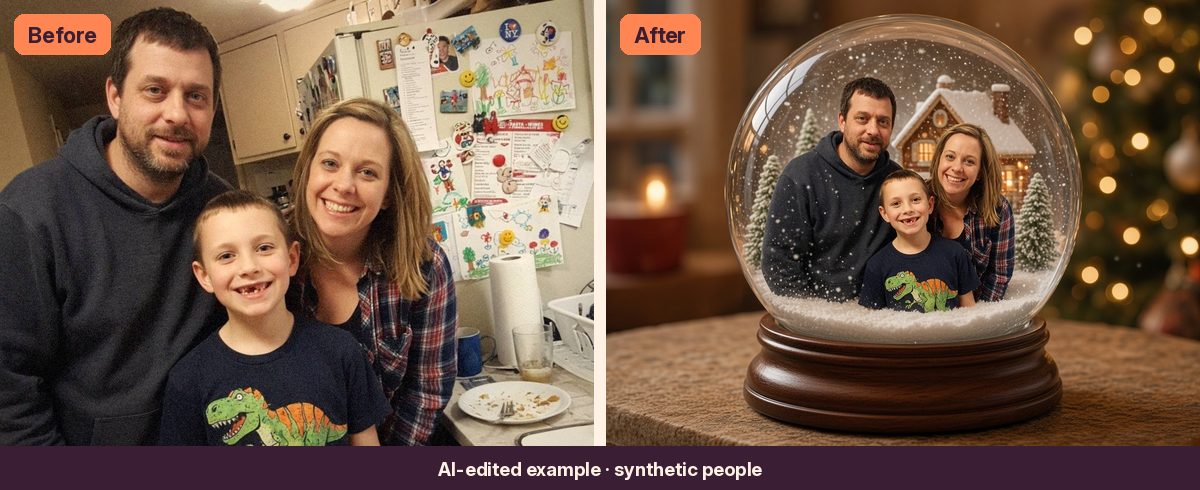
A snow globe shrinks everyone. A face that fills a good part of your screen before the edit ends up much smaller inside the glass, and small faces are where AI tools start guessing.
- Close beats wide. A waist-up or shoulders-up photo works better than a full-length shot from across the room.
- Two to four people is the sweet spot. Bigger groups mean smaller faces in the globe.
- Clutter doesn't matter. The kitchen, the fridge magnets and the dishes all get replaced by the snow globe scene.
Step 2: Paste a prompt that protects faces
Describe the snow globe, but spend just as many words on what must not change. Here's a simple starter prompt you can use for free:
Free starter prompt
Edit the uploaded photo. Keep every person's face, age, expression, hairstyle and clothing exactly as they are, and keep the same number of people. Put the people inside a clear glass snow globe with gently falling snow and a small snowy village behind them. Make the people large inside the globe so their faces are easy to see. Set the globe on a wooden base on a table, with warm, blurred holiday lights in the background. Output a realistic photograph.
This is a short, general prompt, not one of our tested prompts, so expect to retry more often.
Step 3: Check faces, then retry from the original
- Zoom in on every face. Inside the globe, faces can come out a little smoother or glossier than in your photo. If someone looks like a different person, try again.
- Count heads. Make sure nobody was dropped or added at the edge.
- Retry from your original photo, not from the AI result. Editing a result again stacks small changes.
- Want full-length poses? Some tools show people from the shoulders up inside the globe. Ask for "full standing poses" if you want more, but expect smaller faces.
What it looked like in our testing
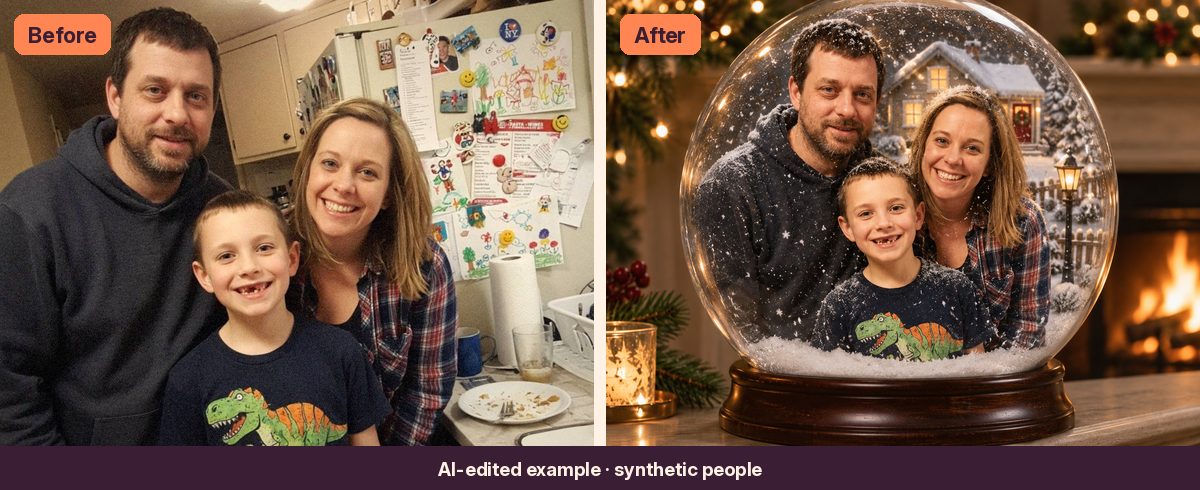
We ran our tested Snow Globe Portrait prompt on the same phone-style family photo in two AI image tools. Both kept all three people and the boy's missing-tooth grin. In ChatGPT, below, the faces came out slightly glossier and the family was shown from the shoulders up.
The shortcut: the tested Snow Globe Portrait prompt
The free prompt above is a good start. Our tested version adds a rule for small or blurry faces, keeps everyone in their original poses and arrangement, and lets you pick the tiny scene, the base and where the globe sits, with tips from our test runs.
Rather have snow in your real photo?
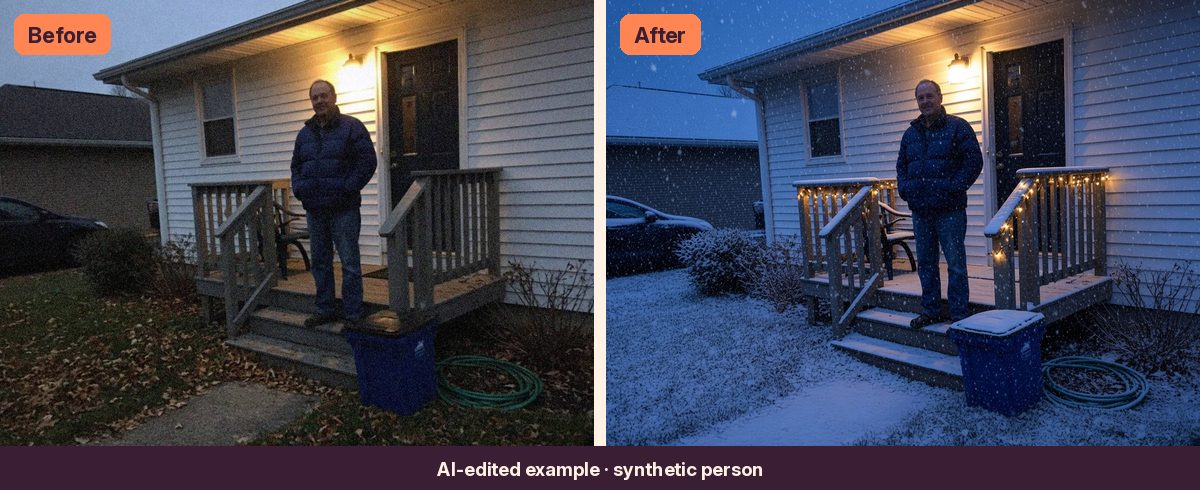
If you'd like to keep your actual porch or yard and just add winter, the Snowfall & Twinkle Lights prompt in the Holiday Card Kit adds falling snow and string lights to the photo you already have.
Quick answers
Can ChatGPT make a snow globe portrait from my photo?
Yes. Upload the photo and describe the snow globe, and say clearly that faces, ages and the number of people must stay the same. Results depend on the tool, your plan and how sharp the faces are in your photo.
Why do faces look different inside the globe?
The people are shrunk to fit inside the glass, so the AI has fewer pixels to work with and sometimes smooths or redraws faces. Start with a photo where faces are large and sharp, and retry from the original if someone looks off.
Does it work with pets?
Our tests used people only. For pets, see our pet holiday portrait guide.